Self-service help · please read this before chatting an agent
Tell us the problem. Follow the steps. Most issues are solved here.
This page is written for first-time users. Pick your situation, do the steps in order, and wait where we say wait.
Best SMS Bulk cannot unban a WhatsApp number or approve a Meta template — only Meta can. We can show you exactly what to click.
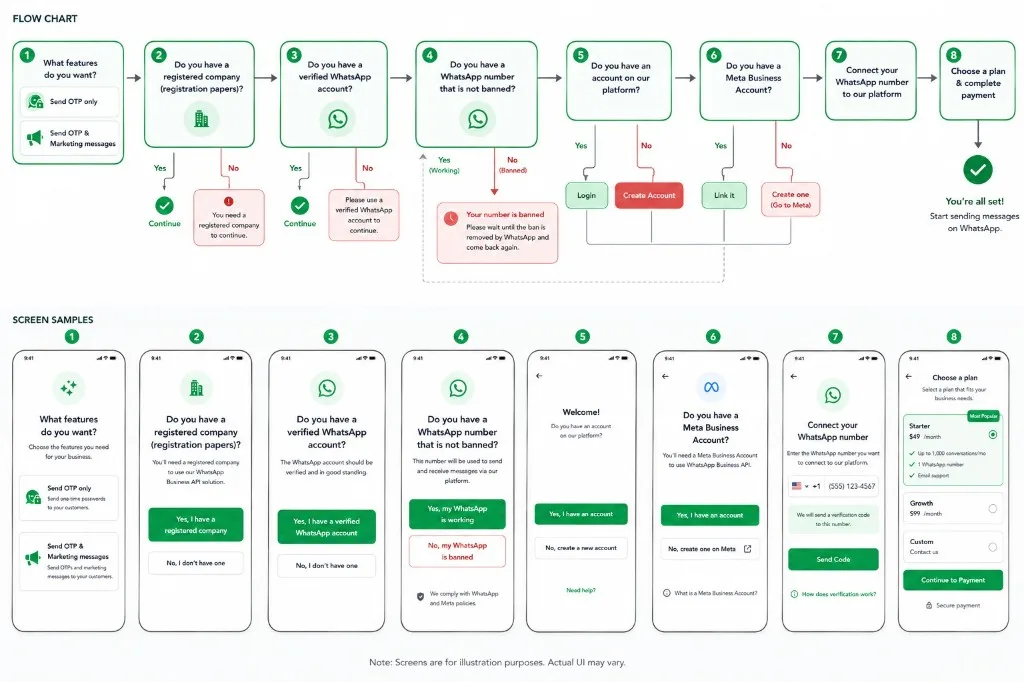
Tap answers on the phone — the same 8 questions our agents ask. The schematic lights up as you go. If a path is blocked (no company, banned number), we show exactly what to do instead of sending you into chat.
1 Features
2 Company
3 WhatsApp
4 Ban check
5 BSB account
6 Meta BM
7 Connect
8 Payment
Open the full flowchart (all 8 screens)
What do you need help with?
Tap one card. We show only that guide so you are not lost in a long page. You can browse everything if you prefer.
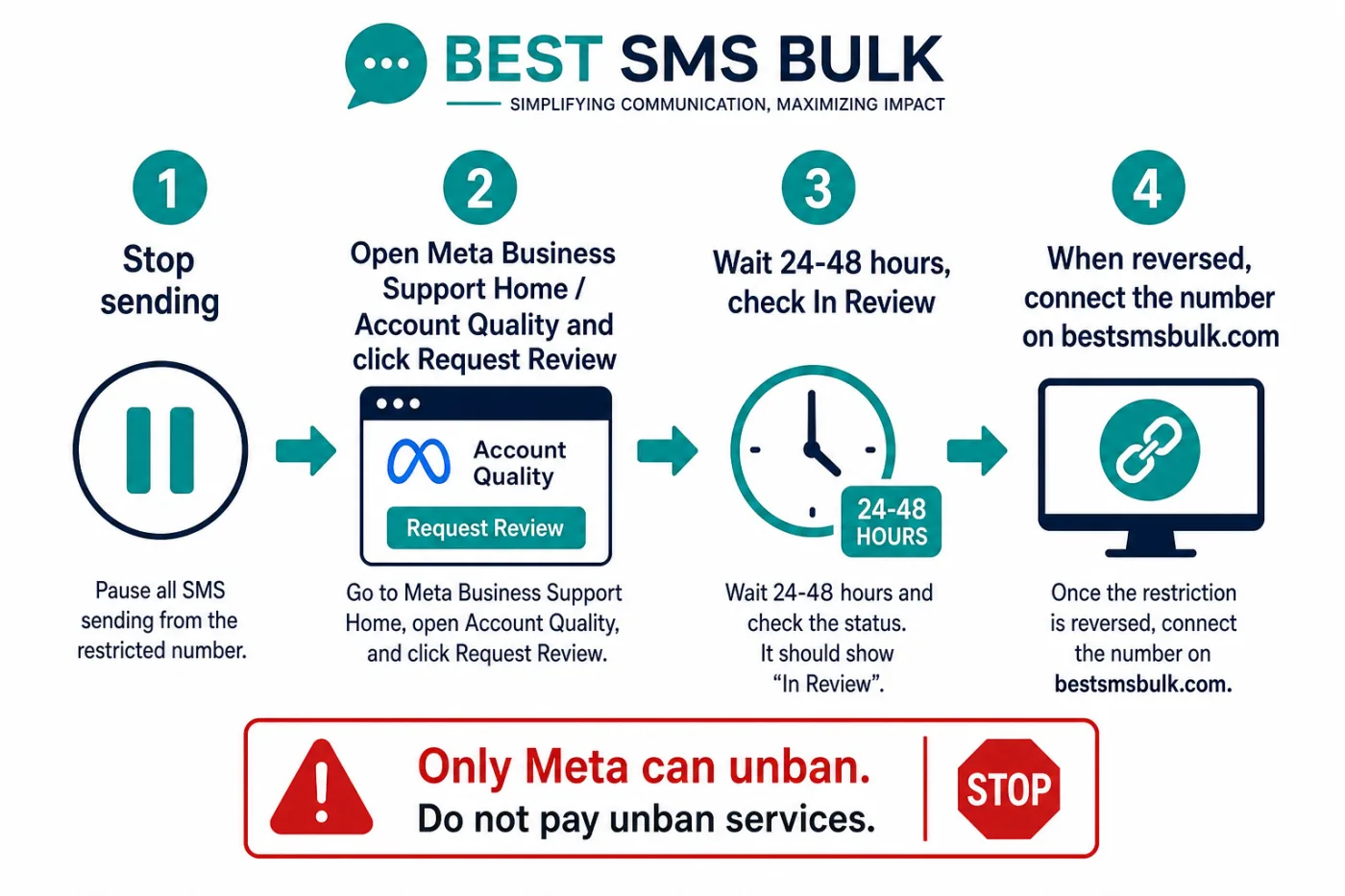
What this means: Meta (the company that owns WhatsApp) locked your number. Best SMS Bulk cannot unlock it. You ask Meta to look again, you wait until they say it is active, then you connect that same number on bestsmsbulk.com.
Only Meta can reverse a ban. Follow this order — do not skip to a new number.A restriction is a Meta lock. The green path starts only after Account Quality shows Reversed.
Do not pay anyone who promises to “unban WhatsApp”. That is a scam. Do not register a new number to keep the same campaign running — Meta treats that as ban evasion and can lock your whole Business account.
Stop sending immediately
Turn off campaigns, chatbots, and any tool still trying to send from that number. Failed sends make the problem worse.
Open Meta Business Support Home
On a computer, log in with the Facebook account that owns the business:
Find the restricted WhatsApp account or phone number
You will see a red or warning banner. Click View details. Read the reason (spam, commerce policy, and so on). You need that text for the next step.
Click Request Review — you usually get one chance
Write a short, honest message. Include:
What your business does and your website
How people opted in (form, checkout, “message us on WhatsApp”)
What you already fixed (you stopped the campaign, you will only message opted-in contacts, you will use approved templates)
Do not argue. Do not paste the same text ten times. Submit once, then leave it.
Wait. Check the In Review tab.
Typical answer: 24–48 hours. Some cases take several business days. Status appears in Business Support Home, not in Best SMS Bulk.
If Meta replies Reversed, the number is usable again. If it stays Unchanged and Request Review disappeared, the ban is usually permanent for that number. Then you start a new number the official way (see Connect my number) — after you fix the behaviour that caused the ban.
Only after Meta unbans it: connect the number on Best SMS Bulk
When you chat us after this, write: “I followed Help → Banned WhatsApp. Meta status is: Reversed / In Review / Unchanged.” That saves a long back-and-forth.
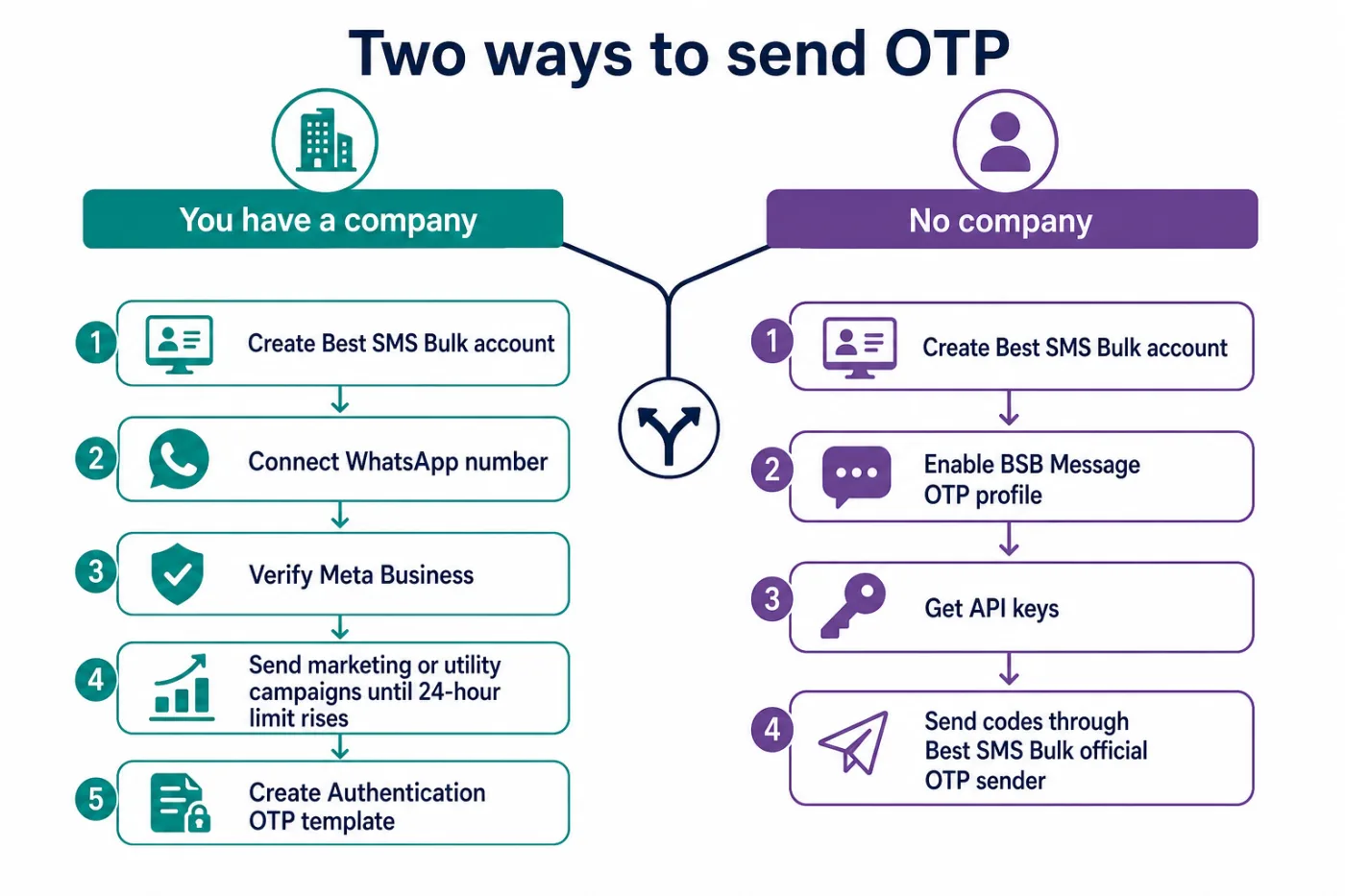
What this means: OTP is a 4–8 digit login code. On WhatsApp, Meta only allows it as an official Authentication template. That path is different if you have a registered company or not. Answer the question below and follow only that branch.
Company → your number (after Meta raises the 24-hour limit). No company → BSB Message OTP profile.
Do you have a registered company?
Trade license, company papers, a website, and someone who can verify the business on Meta.
What this means: Connect the company number, prove the business to Meta, then send normal (marketing or utility) campaigns until Meta raises your 24-hour limit. Only then can you create OTP templates. This is a Meta rule, not a Best SMS Bulk delay.
Authentication templates are a Meta category. They usually unlock after your unique-customer limit rises.
Follow Connect my number with the Facebook that owns (or will own) the Meta Business portfolio. The number should not stay registered on the personal WhatsApp app — see Number is on the WhatsApp app.
Verify your Meta Business account
In Meta Business Settings, complete Business verification. Upload the same legal name, address, and documents that appear on your license. Mismatched papers are the #1 reason this stalls.
Unverified portfolios often start around 250 unique customers per 24 hours. After verification, many accounts move to about 1,000.
Add a payment method on Meta
WhatsApp charges conversation / template fees to the card or PayPal on the Meta Business account. In the dashboard, open Get Started → WhatsApp → add payment, or follow our in-app payment guide after login.
Create Marketing or Utility templates first — not OTP yet
New numbers usually cannot create Authentication (OTP) templates until the 24-hour messaging limit is high enough (commonly the 1,000 unique-customer tier). If the OTP category is greyed out or Meta rejects it, you are not stuck — you are early.
Send real campaigns until Meta raises the 24-hour limit
Message people who opted in: order updates, appointment reminders, or light marketing templates. Keep quality green (few blocks, no spam reports).
Meta reviews limits on a rolling 24-hour window (checks can run several times per day).
You need delivered messages to unique customers, not the same 10 numbers on repeat.
When the limit rises, Authentication templates become available.
Need OTP this week while the limit is still low? Use the BSB Message OTP profile in parallel, or SMS OTP, then switch to your own WhatsApp OTP when Meta allows it.
Create the Authentication template and connect your app
In WhatsApp templates, category Authentication, type OTP (copy code). Wait for Meta approval (often minutes). Then send from the dashboard or the API. Never put a promo in an OTP template.
What this means: Meta will not give a personal WhatsApp number the official OTP channel. You send codes through Best SMS Bulk’s already-verified Message OTP profile. Your users still receive a WhatsApp (or SMS) code. You do not connect your own number and you do not wait for a 24-hour limit increase.
Create a Best SMS Bulk account
Register with a working email and mobile. Confirm the email if we send one.
Ask for the BSB Message OTP profile
After login, open chat or WhatsApp and write exactly:
“I have no company. Please enable the BSB Message OTP profile on my account.”
We attach your account to our official OTP sender. Recipients see the Best SMS Bulk / BSB Message OTP profile — not a personal name.
Get your API credentials
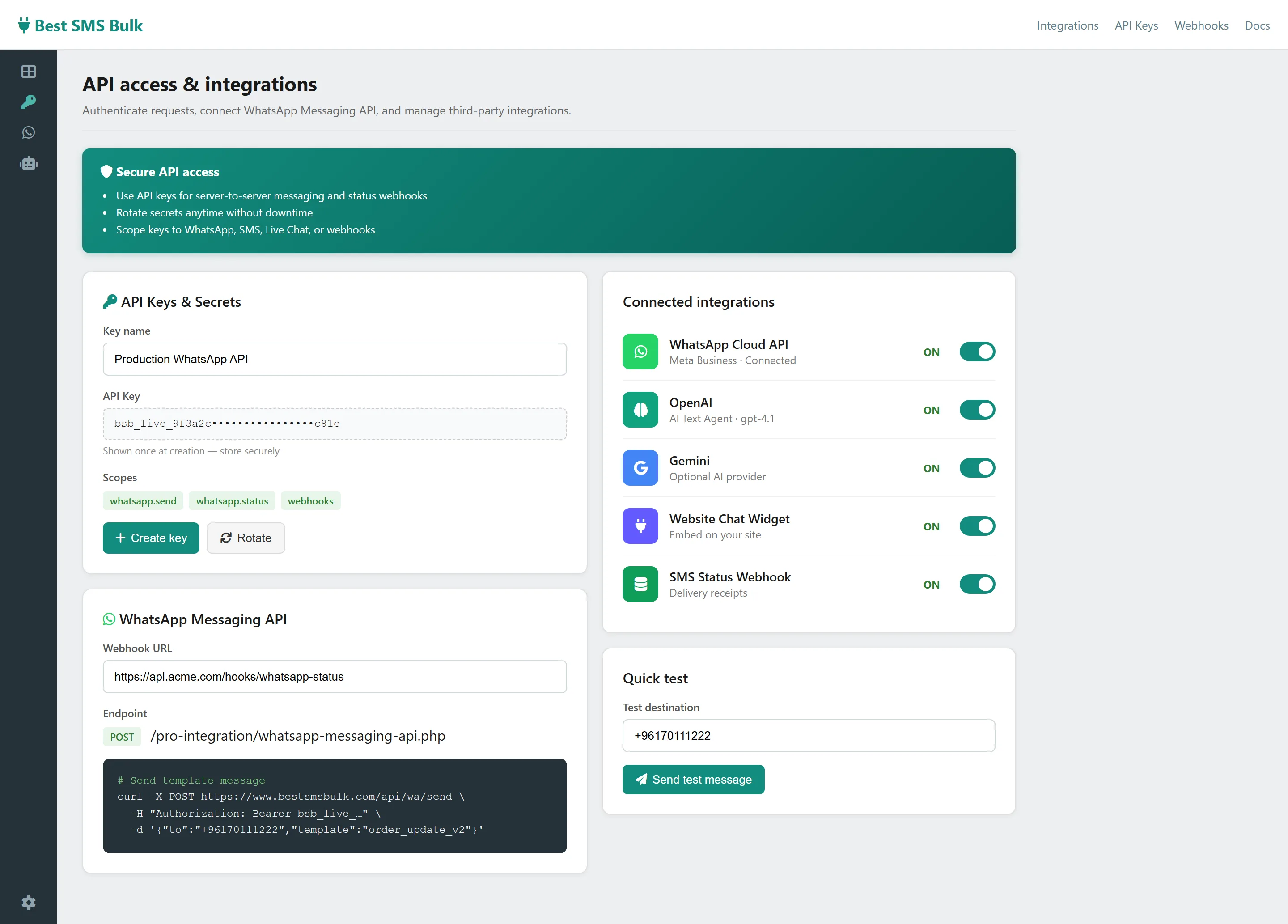
In the platform: Integration → API keys (or ask the agent to point you there). Keep the key secret. Your developer calls our OTP endpoint; we deliver the code.
This is the correct path for startups, apps, and freelancers who only need login codes today. It is official messaging through Best SMS Bulk, not an unofficial “WhatsApp hack”.
What this means: You are not “installing WhatsApp” on our site. You are linking the official WhatsApp Business Platform (Cloud API) to your Best SMS Bulk account using Facebook’s signup window. After that, your team uses the web inbox — not the green phone app — to chat and send templates.
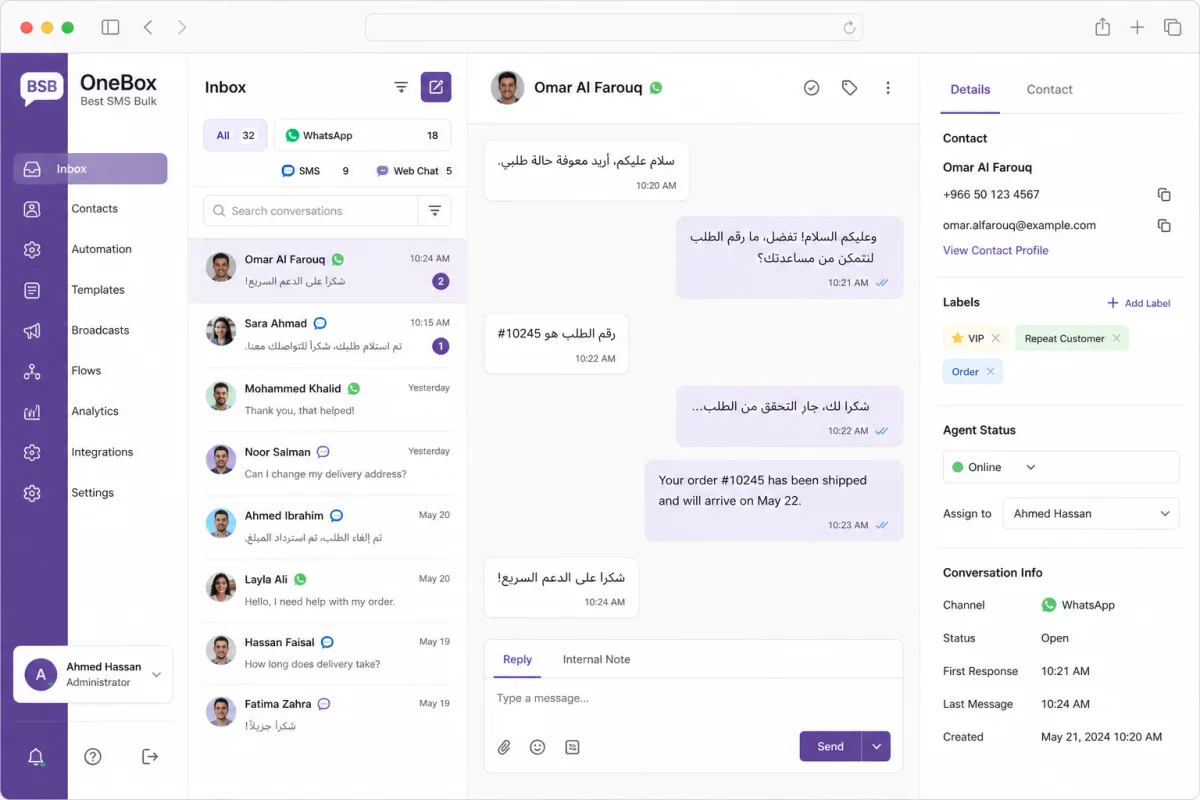
After connect, agents work here (OneBox) — not by scanning QR on a personal phone.
Before you click anything, prepare
A Facebook login that can manage (or create) a Meta Business portfolio
The phone number in international format, able to receive an SMS or voice call
That number is not currently open in WhatsApp on a phone (or you finished coexistence / migration — see below)
If it was banned: Meta must already show it as active (banned guide)
Go to Get Started → Channels → WhatsApp. Click the blue Connect with Facebook button. A Meta window opens — do not close it or use an ad-blocker on that popup.
Complete Meta embedded signup
Log in to Facebook if asked
Create or select a Business portfolio
Create or select a WhatsApp Business Account
Add or choose the phone number
Enter the SMS / voice PIN Meta sends to that number
Allow the permissions Best SMS Bulk needs (messages, templates, webhooks)
Confirm it shows Connected
Back on Get Started you should see the number listed. You can also open OneBox (inbox) and WhatsApp campaigns. If the window closed with an error, try again once. If the number is still on the phone app, finish that guide first.
Add Meta billing
Without a payment method, Meta will not deliver paid conversations. Add a card in Meta Business Settings → WhatsApp accounts / billing. Logged-in users also have a payment walkthrough under Get Started.
What this means: One number cannot live as a normal WhatsApp (or WhatsApp Business) app chat and as Cloud API at the same time, unless Meta coexistence is set up. For most clients the simple path is: backup chats if you need them, remove the number from the phone, then connect it on Best SMS Bulk.
Decide: keep old chat history on the phone?
Export or back up important chats. API connection does not copy your old personal chat list into OneBox.
Delete / log out the number from WhatsApp on the phone
WhatsApp → Settings → Account → Delete account (or log out / change number). Wait 5–15 minutes. The number must be free before Meta will send a new API PIN.
Connect on Best SMS Bulk
Follow Connect my number. When Meta asks, receive the SMS or voice code on that SIM.
Do not keep scanning QR on the phone app after you moved to the API. That fights the Cloud API registration and the number will fail to connect or randomly disconnect.
Situation 5
My template was rejected or recategorized
What this means: Every message you send first (when the customer has not written to you in 24 hours) must be a Meta-approved template. A person or system at Meta reads it. If the category does not match the words, they reject it. Best SMS Bulk cannot override that decision. You fix the text and submit again.
Read the rejection reason
Open templates in the dashboard or WhatsApp Manager. Typical reasons: promotional language in Utility, ALL CAPS, too many emojis, website that does not match, variables used as a whole sentence, or asking for sensitive data.
Pick the honest category
Marketing — offers, newsletters, abandoned cart, “we miss you”
Utility — order shipped, appointment reminder, invoice (no sales pitch)
Meta often blocks reusing the same template name for about 30 days. Use a new name (for example order_update_v2), short body, sample values in every {{1}} variable, and a real website if you add a button.
Wait minutes to 24 hours
If it is still pending after 48 hours, then chat us with the template name. If you disagree with the category, appeal inside Meta Business Support → template category updates — not by emailing us a screenshot only.
Situation 6
Why can I not type a normal message? (24-hour window)
What this means: When a customer writes to you, a 24-hour “customer care” clock starts. During that clock you may type freely. When the clock ends, WhatsApp only allows an approved template to open the chat again. This is why the send box warns you or the API returns an error.
Inside 24 hours: type in Reply. After 24 hours: Insert Template.
If they wrote today
Reply in OneBox like a normal chat. No template needed.
If they wrote yesterday or earlier
Click Insert template (or send a template campaign). Choose an approved Marketing or Utility template. When they reply, the 24-hour clock starts again.
Service reminders
A template such as “You asked us to continue this chat. Reply YES to go on.” is the standard way to reopen a conversation legally.
This is not a Best SMS Bulk bug. It is WhatsApp platform policy.
Situation 7
Quality rating dropped, or messages are not delivering
What this means: Meta watches how people react. Too many blocks or “spam” reports turn the number yellow, then red. Limits stop growing. Templates can pause. This is almost always caused by messaging people who did not ask for WhatsApp, or by blasting the same promo.
Pause the campaign
Do not “push through” a red number. Stop, then continue with a smaller opted-in list.
You are sending free-form text outside the 24-hour window
Only message people who opted in
Website form, checkout checkbox, or a customer who messaged you first. Bought lists and scraped numbers destroy quality.
Wait for green
Quality is measured on recent sends. A few days of careful Utility messages usually recovers yellow. Red can take longer. Keep sending high-quality templates; do not create a second number to escape a red rating.
Situation 8
I want to send offers, announcements, or bulk WhatsApp
What this means: Bulk on the official API is not the WhatsApp Business phone app broadcast list. You need Cloud API, Marketing templates, and contacts who agreed to hear from you. Sending to random numbers is how accounts get banned.
What this means: SMS does not use Meta. You register on Best SMS Bulk, we route messages through operators. Some countries need a Sender ID (the name that appears as the sender). OTP SMS works even if WhatsApp OTP is not available yet.
Create an account and request SMS
Register, then tell us the country and whether you need marketing SMS, alerts, or OTP.
Sender ID where required
We submit the name to the operator. This can take from hours to a few days depending on the country.
Send from the dashboard or API
Upload numbers, or call the SMS API. For login codes, keep WhatsApp as a second channel later if you want — see OTP WhatsApp vs SMS.
What this means: Your developer should send messages from your server, never from a mobile app with the key baked in. Create the account, connect the channel (or enable BSB OTP profile), then copy the key from Integration.
Keep API keys on the server. Product docs: API documentation.
Create a key, store it in your backend environment variables, rotate it if it leaks.
Read the docs and send a test
API documentation. Confirm delivery with a webhook or the reports screen before you go live.
Situation 11
Several people need to answer the same WhatsApp
What this means: The phone app is for one person. BSB OneBox is the shared inbox: several agents, labels, assignment, WhatsApp + Instagram + Messenger + TikTok in one place. After the number is connected, agents log in on the web (or the OneBox mobile app) — they do not scan QR on a personal phone.
Each teammate logs in with their own user. The WhatsApp number stays on Cloud API.
What this means: The name customers see must look like a real business name. Slogans, ALL CAPS, extra emojis, or a name that does not match your documents get refused.
Good: Al Noor Pharmacy — matches the license
Bad: BEST OFFERS 50% OFF!!! — that is an ad, not a name
Change the display name in WhatsApp Manager / during signup to the legal or well-known brand name, then wait for Meta. If verification documents use another language or spelling, use that exact spelling.
Situation 13
I already have WhatsApp API with another provider
What this means: A number is tied to one WhatsApp Business Account. To move it to Best SMS Bulk you typically disconnect / migrate with Meta embedded signup (or ask both providers to coordinate). Creating a second WABA with the same number will fail. Do not create a brand-new Facebook Business “to be safe” if the old portfolio still owns the number — use the existing one and share it, or complete a clean migration.
When you chat us, send: current provider name, WABA ID if you have it, and the phone number in international format.
Short answers agents hear every day
Can you unban my WhatsApp?
No. Only Meta can. Follow My WhatsApp is banned, then connect the number here after they reverse it.
How long until I can send OTP on my own number?
After connect + business verification, you often still need Meta to raise the 24-hour unique-customer limit (commonly to 1,000) by sending good marketing/utility traffic. If you need OTP immediately, use the BSB Message OTP profile or SMS OTP.
Why did Meta charge me / why is there a card?
WhatsApp Business Platform usage is billed by Meta to the payment method on the Business portfolio. Best SMS Bulk platform fees are separate. Add the card in Meta billing or the in-app payment guide after login.
The customer received nothing
Check: number format with country code, template approved, inside or outside the 24-hour window, Meta billing, quality not red, and that the user actually has WhatsApp. For SMS, check Sender ID registration in that country.
Can I use the WhatsApp Business app and the API together?
Not in the casual “two phones, one number” way. See number on the app and API vs App. Coexistence is a specific Meta setup — ask us only after you read those.
Still stuck after following the steps?
Chat with an agent only if you already opened the matching guide. In your first message, paste the situation title and what you already did (for example: “Banned WhatsApp — Request Review submitted yesterday, status still In Review”). That is the fastest way we can help — and it keeps the queue free for people who cannot self-serve.
Agents can send a direct link: bestsmsbulk.com/help#banned, #otp-company, #otp-no-company, #connect, #templates.